
Are you wondering whether the Epson RapidReceipt RR-600W Wireless Desktop Color 2-Sided Receipt & Document Scanner is the right upgrade for your home office or small business?

First impressions
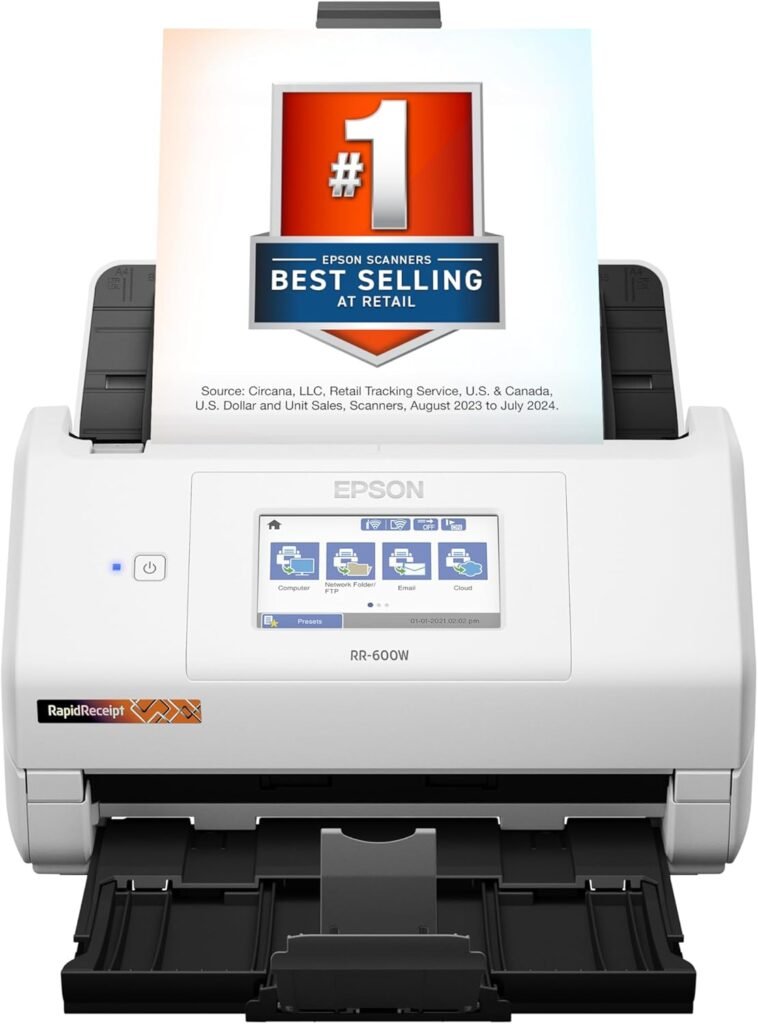
You’ll notice the Epson RapidReceipt RR-600W looks like a purpose-built office device with a compact footprint and an intuitive 4.3″ color touchscreen on the front. The unit feels solid and well assembled for a desktop scanner, and the touchscreen makes daily tasks feel modern and accessible without reaching for a PC.
What this product is designed to do
This scanner is built to convert stacks of paper receipts, invoices, and documents into organized digital records quickly, and to feed those records into financial software or cloud storage. You’ll use it when you need to reduce paperwork, prepare for taxes, automate bookkeeping, or keep searchable digital archives.
Key specifications
Below is a concise breakdown of the most relevant specs so you can quickly compare what matters most to you. This table shows the essential details at a glance and helps you decide whether this scanner matches your needs.
| Specification | Detail |
|---|---|
| Model | Epson RapidReceipt RR-600W Wireless Desktop Color 2-Sided Receipt & Document Scanner |
| Scanning technology | Color duplex scanning, single-pass (both sides captured at once) |
| Speed | Up to 35 pages per minute (ppm) / 70 images per minute (ipm) in duplex mode |
| ADF capacity | 100-page Auto Document Feeder (TrueFeed) |
| Touchscreen | 4.3″ color touchscreen, intuitive controls |
| Connectivity | Wireless (Wi-Fi), USB, direct-to-cloud/email/USB flash drive (PC-free) |
| Software | ScanSmart AI PRO Receipt Management & PDF software for PC & Mac |
| File outputs | Searchable PDF, standard PDF, JPG, TIFF (typical outputs) |
| Special features | ScanSmart AI PRO for intelligent data extraction, Export to QuickBooks & TurboTax, TrueFeed technology (paper skew & staple protection) |
| Use cases | Receipts, invoices, contracts, multi-page documents, ID cards |
Design and build quality
You’ll find the RR-600W’s design balances functionality with a small footprint so it fits on a desk or in a home office without dominating space. The plastic exterior is firm and well-aligned, and the ADF track and feed mechanisms feel robust for daily scanning of larger stacks.
The touchscreen is embedded at a comfortable angle for standing use, and buttons and input points are laid out logically so you rarely need the manual during routine operations. The feeder trays fold cleanly for storage or transport, which helps if you move the device between rooms or workspaces.
Touchscreen and controls
Using the 4.3″ color touchscreen is one of the more modern touches on this scanner, and it makes the device feel like a standalone appliance rather than a PC peripheral. You’ll be able to select scans, send to cloud accounts, email, or USB flash drives directly from the interface without opening any desktop software.
Menu navigation is generally intuitive, and Quick Scan presets are easy to create and call up. If you prefer relying on dedicated software for complex tasks, the touchscreen acts as a convenient front-end for quick, PC-free jobs.
Scanning performance overview
If you scan a lot of receipts, invoices, or mixed-size documents, you’ll appreciate the RR-600W’s combination of speed, duplex capture, and smart feeding mechanics. The unit handles different paper sizes and weights better than many consumer scanners, and you’ll save time by scanning both sides in a single pass.
Resolution and color reproduction are good enough for receipts, line-item invoices, and most office documents. For photo archiving or professional photographic output, you’ll want a flatbed or dedicated photo scanner, but for documentation and bookkeeping the RR-600W performs reliably.
Speed and duplex scanning
You’ll get up to 35 pages per minute in single-sided mode and up to 70 images per minute in duplex single-pass mode, which translates to fast throughput for multi-page documents. Single-pass duplex is especially convenient for two-sided invoices and statements because you don’t need to flip pages or run them through the scanner twice.
In real-world conditions, speed will vary with resolution settings, file format, and whether OCR is applied during scanning. When scanning color receipts at higher resolutions with OCR enabled, expect slightly slower throughput, but still a strong performance compared to older, single-sided units.
TrueFeed technology and ADF reliability
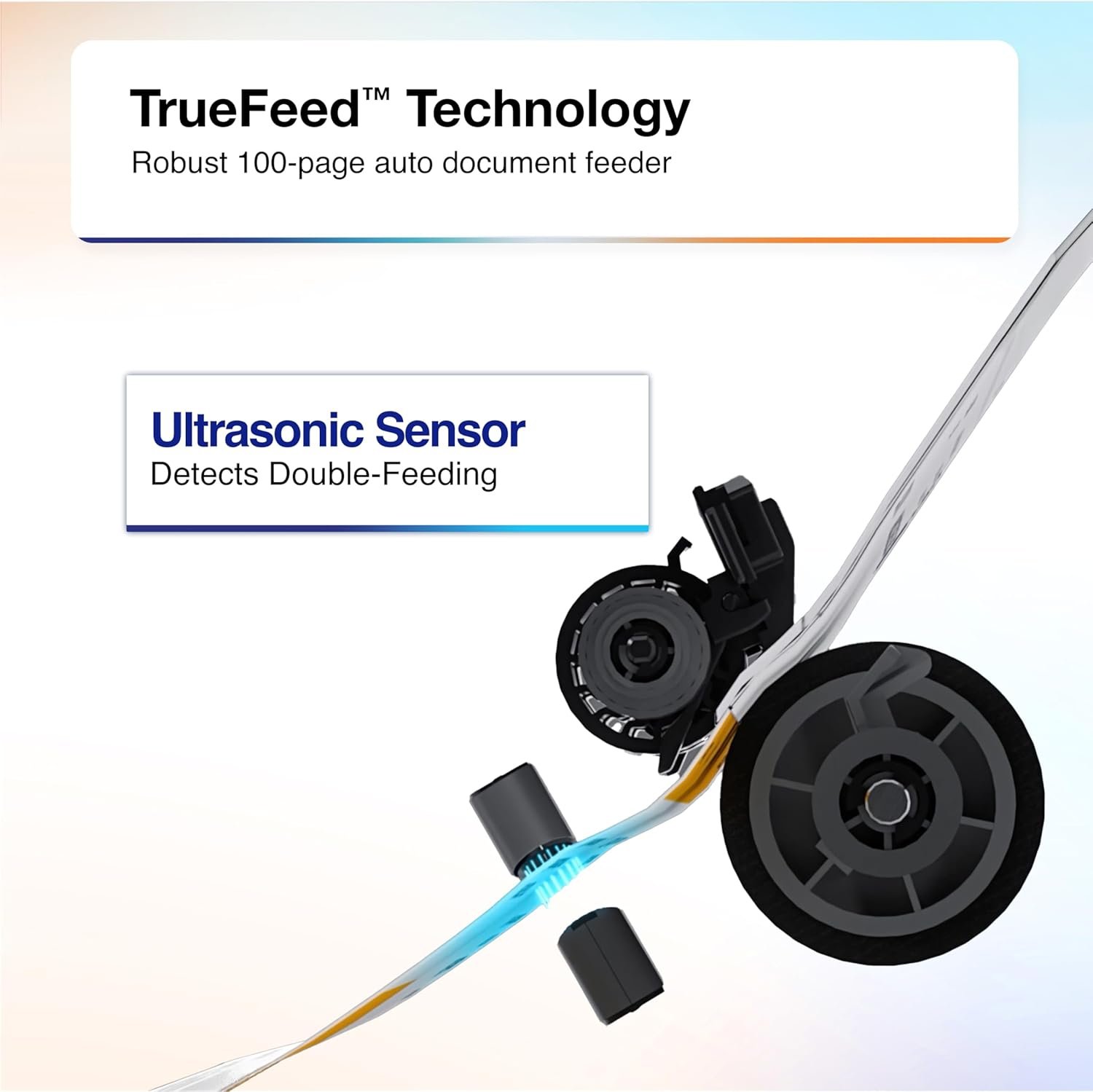
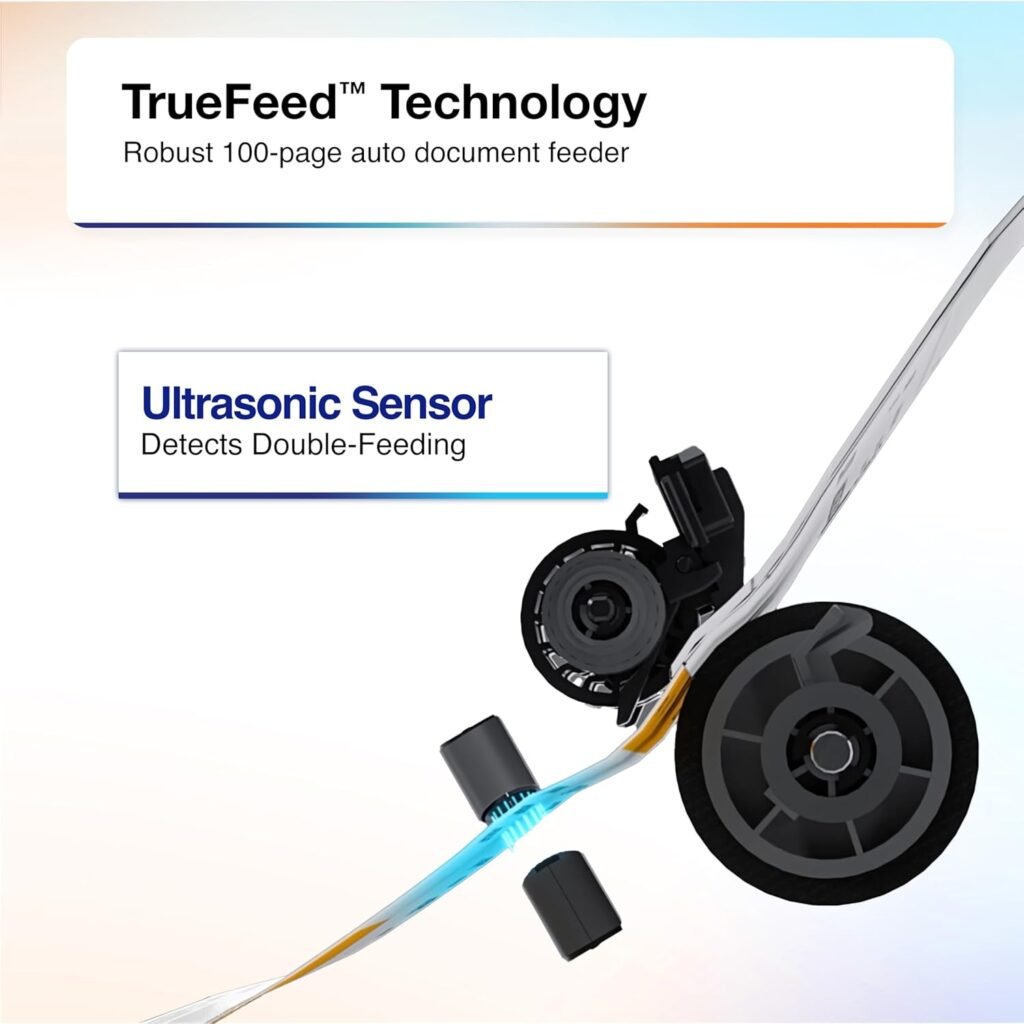
TrueFeed technology is what you’ll notice when feeding mixed stacks: the 100-page Auto Document Feeder protects against skew and staples and helps keep feeding consistent. You’ll be less likely to experience misfeeds or paper jams with typical office usage, which is a big time-saver when processing large batches.
Staple and skew protection means you can often feed documents without meticulously removing staples, but for best long-term performance it’s wise to limit staples and paper clips and remove them when practical. The 100-sheet ADF capacity is generous for a desktop scanner and lets you batch-process entire days or weeks of receipts in one run.
ScanSmart AI PRO: what it does for you
ScanSmart AI PRO is a key differentiator because it automatically recognizes and extracts data from receipts and invoices, converting the scanned images into intelligent digital data. You’ll find line-item capture, vendor identification, dates, totals, and categorization features that save hours compared to manual data entry.
This AI-enabled extraction means scanned receipts become searchable and structured data that you can filter, edit, and export. If you’re tracking expenses, preparing taxes, or consolidating financial records, AI PRO reduces friction by turning paper into usable, editable records.
OCR accuracy and practical results
You’ll get good OCR accuracy for typical printed receipts and invoices—clean fonts, clear layouts, and standard thermal printing deliver high recognition rates. Handwritten notes or smudged thermal receipts can be more challenging for OCR, and you should expect some manual corrections with very old or damaged documents.
ScanSmart AI PRO improves data accuracy by focusing on fields commonly used in finance (vendor, date, total, tax, line items). You’ll still review and verify results, but the software significantly reduces repetitive manual tasks and organizes data into export-ready formats.

Export to financial software and workflows
If you use QuickBooks, TurboTax, or similar accounting tools, you’ll appreciate that this scanner is designed to export categorized digital data directly into those formats. You’ll save time because the scanned and processed receipts can be mapped to expense categories and exported as CSV or integrated files for accounting packages.
This integration is especially useful if you need to hand over records to an accountant or import them into bookkeeping software for reconciliation. Small businesses, contractors, and freelancers who need regular bookkeeping will find this feature simplifies the monthly and annual closing processes.
Supported export paths and cloud options
You can scan directly to email, cloud storage providers, and USB flash drives from the touchscreen without a PC, which gives you flexibility when you need to collect scans on the go. When connected to a PC or Mac, the included ScanSmart software lets you export documents to folders, PDFs, or third-party accounting tools.
Cloud scan options typically include major services like Google Drive, Dropbox, OneDrive (depending on configuration and software updates). You’ll want to confirm specific cloud integrations in the software interface and set up accounts beforehand for seamless direct-to-cloud scanning.
Software and compatibility
Epson bundles ScanSmart AI PRO and PDF software for both PC and Mac, and setup dialogs walk you through driver installation, Wi-Fi setup, and initial calibration. You’ll find the software guides are user-friendly, and the workflow-focused design helps you build scanning presets for common tasks.
The scanner supports standard file formats—searchable PDF, standard PDF, JPEG, TIFF—so you can use scanned files across almost any document management, accounting, or cloud platform. If you rely on specific enterprise document management systems, check compatibility or import paths in advance, but most SMB setups will integrate easily.
Setup and first use
You’ll be able to set up the scanner quickly: remove packaging, connect power, select Wi-Fi or USB, and install ScanSmart on your computer. Follow the touchscreen prompts to join your network and register cloud accounts if you plan to use PC-free scanning.
Initial calibration for paper size and feed alignment is straightforward, and the software will guide you to scan a sample document to optimize OCR settings. If you plan bulk scanning, consider a short test run to confirm preset quality/size combinations and to see how the scanning speed performs with your document types.
Typical workflows and real-world use cases
If you manage monthly expenses, you’ll scan receipts in batches, let ScanSmart AI PRO extract amounts and vendors, and then export categorized data to QuickBooks or a CSV. For tax preparation, you’ll gather receipts, scan them to searchable PDFs, and attach extracted expense data to tax categories for TurboTax imports.
For invoice archiving, you’ll scan multi-page invoices, capture both sides with a single pass, and use searchable PDFs to maintain a clean archive that’s easy to search by vendor name, invoice number, or date. For office administrators handling contracts and ID cards, the single-pass duplex makes scanning faster and less error-prone.
Image quality and file output
You’ll get crisp scans for text documents and good color rendering for receipts and basic graphics. The scanner produces sharp, legible PDFs suitable for OCR, and you’ll find that black-and-white or grayscale modes often reduce file sizes while preserving readability for archival purposes.
For receipts that are faint or printed on thermal paper, you may need to tweak contrast and OCR sensitivity in ScanSmart to improve recognition. The software offers adjustments and batch processing options so you can normalize a folder of scans for consistent results.
File formats and searchable PDFs
Searchable PDFs are particularly valuable because they let you find content by text, not just by file name. You’ll be able to open a scanned invoice and search for invoice numbers, vendor names, or product descriptions without manually tagging files.
If you need images in JPEG or TIFF for other workflows, those options are available as well. TIFF is useful when you need multi-page high-fidelity archival images; JPEG is handy for single images where file size is a concern.
Wireless and PC-free scanning options
If you prefer not to tether a scanner to your computer, you’ll appreciate the RR-600W’s wireless capability and PC-free scanning modes. The touchscreen allows direct uploads to email, a connected cloud service, or a USB flash drive, which is helpful if you’re processing documents away from your workstation.
Setting up Wi-Fi and cloud accounts is straightforward from the device interface, and once configured you’ll be able to scan batches and send them directly where they need to go. This convenience is great for small offices or remote workers who want to reduce steps between scanning and filing.
Security and privacy considerations
You’ll want to consider where scanned files are stored and how they’re transmitted—especially when scanning sensitive financial documents. The scanner supports local USB export and can be restricted to internal network use to reduce exposure; cloud uploads are convenient but require you to trust your cloud provider and to enable secure accounts.
If you’re handling highly sensitive data, decide whether cloud or local storage better fits your security policies and use encrypted channels and strong account passwords. For enterprise-level privacy needs, pair this device with encrypted storage and secure network policies.
Maintenance and longevity
You’ll find maintenance is relatively low: keep the feed paths clean, remove debris, and periodically clean the glass and rollers using manufacturer-recommended methods. If you scan frequently, plan to replace feed rollers at intervals suggested by Epson to maintain reliability.
The scanner is designed for business use, and with proper maintenance you can expect consistent performance for years. Keep a small toolkit for removing paper jams and a package of spare cleaning supplies to minimize downtime on scanning days.
Troubleshooting common issues
If you experience misfeeds, check for skewed stacking or mixed paper thickness in the ADF and ensure staples and paper clips are removed. If OCR results are poor, scan at a higher resolution or adjust contrast and brightness settings in ScanSmart to improve text recognition.
Connectivity issues usually boil down to Wi-Fi setup or driver mismatches; updating the scanner firmware and software and ensuring your computer has the latest drivers typically resolves network and connectivity hiccups. For persistent hardware problems, Epson support or authorized service centers can assist with diagnostics and parts replacement.
Pros and cons
You’ll get a lot of value from this scanner if your priorities are fast duplex capture, strong receipt and invoice handling, and tight integration with financial tools. On the downside, it’s not a flatbed scanner, so delicate photos or bound material require different equipment.
Pros:
- Fast single-pass duplex scanning for two-sided documents.
- 100-page ADF with TrueFeed for reliable batch processing.
- ScanSmart AI PRO automates data extraction and integrates with accounting software.
- 4.3″ touchscreen enables PC-free scanning to cloud, email, or USB.
- Wireless connectivity for flexible placement.
Cons:
- No flatbed option—limited for fragile photos or oversized documents.
- OCR struggles with very old or damaged thermal receipts.
- Cloud integrations may require setup and periodic re-authentication.
- Larger size than top-sheet single-receipt solutions; needs desk space.
Who should buy this
You’ll benefit from the Epson RapidReceipt RR-600W if you run a small business, freelancing practice, or home office where receipts and invoices pile up and bookkeeping is time-consuming. Accountants, bookkeepers, and tax preparers will also appreciate how AI-enabled extraction reduces manual data entry.
If your scanning needs are occasional and limited to a few receipts per week, this might be more capacity and cost than necessary; consider lighter, less expensive receipt-only scanners in that case.
How it compares to similar models
Compared to lower-end receipt scanners, the RR-600W stands out because of its single-pass duplex, 100-page ADF, and advanced AI extraction for financial workflows. Against higher-end enterprise scanners, it offers a great balance of speed and smart features for SMBs but lacks some of the heavy-duty duty-cycle ratings and advanced network management features of top enterprise models.
If you need a flatbed for photos, consider adding a separate photo scanner or choosing a multifunction device with a flatbed option, but understand that the convenience of the RR-600W’s ADF and AI processing is specifically tuned for document and receipt workflows.
Tips and tricks for best results
You’ll get better OCR and fewer jams by aligning receipts neatly and removing staples where possible before feeding them. Use grayscale or black-and-white mode for text-only receipts to reduce file sizes while keeping OCR quality high.
Create and save presets in ScanSmart that match typical tasks (e.g., “Receipt – High Compression,” “Invoice – Searchable PDF, 300 dpi”) so you can run repeat jobs with one tap on the touchscreen. Batch similar items together—thermal receipts in one batch, invoices in another—to avoid mixed-results in OCR and color correction.
Long-term ROI and productivity gains
You’ll likely see a return on investment through reduced manual entry time, faster bookkeeping, and easier tax preparation. The cost of the scanner is offset by hours saved in administrative tasks, fewer lost receipts, and cleaner financial records that make reconciliation and audits less painful.
Employees who spend hours reconciling expenses will be freed up to focus on higher-value tasks once receipt processing is streamlined with the RR-600W and ScanSmart AI PRO.
Environmental and operational considerations
You’ll need to plan for paper waste reduction and digital backup strategies when transitioning to a paperless workflow. Consider keeping both a local backup and cloud backup of critical financial documents for redundancy and disaster recovery.
Energy use is relatively low for a desktop scanner, but if you’re optimizing for sustainability, power down the scanner when not in use for extended periods and consider paperless storage best practices to reduce printed backups.
Frequently asked questions (short)
You’ll wonder about file formats—this scanner supports searchable PDFs and common image formats. If you need to scan ID cards or passports, the single-pass duplex handles both sides but check local regulations for copying IDs. For cloud services, confirm compatibility in the ScanSmart setup screen, and make sure you have credentials ready for direct cloud uploads.
If you need mobile scanning from smartphones, this device is primarily desktop-focused; mobile scanning can be done with dedicated mobile apps separate from the RR-600W.
Troubleshooting checklist
If scanning stalls or jams: remove and reseat the stack, check for foreign objects, and inspect feed rollers. If OCR fails: increase resolution, use grayscale or color as appropriate, and clean the glass and rollers. For connectivity issues: reboot your router, check Wi-Fi passwords, update drivers, and reconnect the scanner through the touchscreen.
If problems persist, run the software diagnostics or contact Epson support for further guidance and potential firmware updates.
Final thoughts
You’ll find the Epson RapidReceipt RR-600W Wireless Desktop Color 2-Sided Receipt & Document Scanner a strong fit if you need fast, reliable duplex scanning and intelligent receipt processing tied to accounting workflows. The combination of ScanSmart AI PRO, a 100-page ADF with TrueFeed protection, and a user-friendly touchscreen creates a practical solution for small businesses and busy professionals who want to reduce time spent on data entry and document organization.
If your priority is high-volume, accurate document-to-data workflows that integrate with QuickBooks or TurboTax, this scanner is designed to smooth that path. Pair it with good scanning habits—preparing stacks, choosing sensible presets, and maintaining the device—and you’ll save time, improve accuracy, and make post-scan organization a lot simpler.
Disclosure: As an Amazon Associate, I earn from qualifying purchases.